Home / Guides / How to download a TikTok video without watermark
How to download a TikTok video without watermark
When you press save inside TikTok, the app stamps a moving logo and the creator's name on the video. That is fine for sharing inside TikTok, but it looks messy anywhere else. This guide shows how to save a clean copy where TikTok provides one, how to take just the sound as an MP3, and how to save the pictures from photo slideshows. You will also learn how to copy the right link, how short links behave, what quality to expect, and the rules about music and reposting that keep you out of trouble. Everything here is free and needs no account.
Last updated: October 29, 2026
Why the in-app save adds a watermark
The save button in TikTok creates a new file with an animated logo that moves between corners and the creator's username at the end. It is TikTok's way of promoting the platform and crediting the creator. When you post that file on another platform, the logo is a giveaway, and some platforms reduce the reach of videos that carry it.
A clean copy is the original video file without that overlay. Where TikTok publishes one for a public video, our tool can fetch it.
Step 1: copy the TikTok link
In the app, tap Share on the video and choose Copy link. On a computer, copy the address from the browser bar. The link can be long, like tiktok.com/@name/video/ followed by a number, or a short address starting with vm.tiktok.com or vt.tiktok.com. Short links work, because they redirect to the real video.
Make sure the account is public. Videos from private accounts and videos with the audience set to friends cannot be saved.
Step 2: paste it into the TikTok Video page
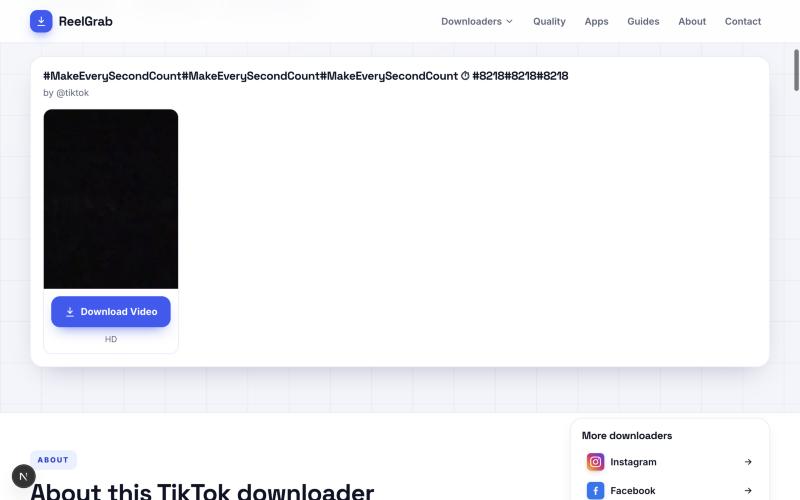
Paste the link and wait a few seconds. You will see a preview and a Download button. Where a high definition clean file exists, the button says HD. The file is a standard MP4 that plays everywhere.
If the page says the post has no video, it is probably a photo slideshow. Switch to the Photo tab and use the same link.
Saving only the sound
Open the Audio tab and paste the same link. You get the original sound of the post as an MP3, with the name of the sound shown on the card. This is useful for listening later or for finding the track name to look up the song.
Music in TikTok videos belongs to artists and labels. Use saved sound for personal listening, and do not redistribute it or use it in a project without permission.
Saving slideshow photos
A TikTok photo post, also called a slideshow, is a set of pictures with music. Open the Photo tab and paste the link. Each picture appears with its own Download button, so you can save one or all of them as JPG files. The sound of the post can be saved separately from the Audio tab.
Pictures are saved at the size TikTok serves. We do not enlarge or edit them.
What quality to expect
Most TikTok videos are vertical, 1080 by 1920 or 720 by 1280. The HD file is the larger one. Creators who upload at low quality produce low quality downloads, since no tool can add detail that is not in the source. A clean file also tends to be slightly smaller than the in-app version, which has extra elements added.
A minute of HD vertical video is usually between 8 and 15 MB.
Saving on phone and computer
On iPhone, use Safari. Tap Download, open the Downloads icon in the address bar and use Share, then Save Video, to add it to Photos. On Android, Chrome saves to Downloads and the video appears in Gallery shortly after. On a computer it goes to your Downloads folder.
If you plan to edit the clip, copy it to your computer or to a cloud drive so you do not lose it when you free up phone storage.
Rules, tips and troubleshooting
Saving for personal viewing is common. Reposting someone else's video as your own, hiding credits or using music commercially can get content removed and accounts penalised. Ask for permission, credit the creator and avoid private individuals' content.
If a link fails, open it in a private window to check that it is public, copy the link to the video and not to the account, and wait a minute, since the service we use to fetch files limits how often it can be called. Switching between Video, Photo and Audio for the same link is quick, because we remember the lookup for a short time.
Quick answers
Is the watermark really gone? Where TikTok provides a clean version of a public video, the file we fetch does not carry the moving logo. If TikTok offers only one version, that is the one you get.
Can I download my own TikTok without the logo? Yes, if the post is public. For private drafts, use the original file on your phone.
Why does my link say there is no video? The post is probably a photo slideshow. Use the Photo tab for pictures and the Audio tab for the sound.
Do short links work? Yes. Links starting with vm.tiktok.com or vt.tiktok.com redirect to the full video, and the tool follows them.
Tips for creators and fans
If you are a creator, keep the original files of your own videos so you never depend on a download. If you are a fan who wants to keep a favourite clip, save it and note the creator's name, so you can credit them if you share it.
Avoid re-uploading other people's videos to TikTok or other platforms. Duplicate content is often detected and can lower reach or lead to removal. Share the link, or use the platform's own share and duet features instead.
Common mistakes to avoid
People often paste a profile link when they want one video, or the link of a sound page when they want the post that uses it. Neither points to a single video, so the tool cannot help. Another mistake is using the Video tab for a photo slideshow and giving up when it says there is no video. The Photo tab is the right place. A third mistake is saving a video from a screen recording to avoid the watermark. A recording is lower quality and may still show the interface. Finally, avoid downloading from sites that ask you to install an app or log in with your TikTok account. A real downloader needs only the link.
What it looks like on the page
Here is the real page while you work. Paste the link, tick the box that says you may save the content, and the tool starts. A preview card then shows the title, the account and the quality, with one button to save the file.

What the result looks like
After a few seconds the result card appears with the preview and the download button.