Home / Guides / How to download Instagram reels in HD, step by step
How to download Instagram reels in HD, step by step
Instagram reels are made to be watched inside the app, which is fine until you want to keep one for a flight, a lesson or a memory. This guide shows the simplest way to save a public reel as a clean MP4 file in the best quality the platform serves. You will learn what HD really means for a vertical video, how to copy the right link, how to confirm the quality you received, why some reels look softer than others, and what to do on iPhone, Android and computers when something does not work as expected.
Last updated: October 29, 2026
What HD means for a reel
Reels are vertical videos, so their size is written the other way round from a normal film. A Full HD reel is 1080 pixels wide and 1920 tall, and an HD reel is 720 by 1280. These numbers are fixed at the moment the creator uploads. A downloader cannot add detail that was never there, which is why a promise of 4K for every reel is not honest.
What a good tool can do is fetch the best version the platform keeps and hand it over without shrinking it again. That is how ReelGrab works. We read the public page of the reel, find the largest video file Instagram serves to everyone, and give you that file as it is. We do not convert it, add a logo or lower the bitrate.
Step 1: find the reel and copy its link
Open the reel in the Instagram app or in a browser. In the app, tap the paper-plane Share icon below the reel and choose Copy link. On a computer, click the three dots on the reel, choose Copy link, or simply copy the address from the browser bar. The link looks like instagram.com/reel/ followed by a short code.
Make sure the reel belongs to a public account. If you can open the same link in a private or incognito window without logging in, it is public and the download will work. If Instagram asks you to log in to see it, no web tool can fetch it, and you should not give your password to any site that offers to.
Step 2: paste the link and press Download
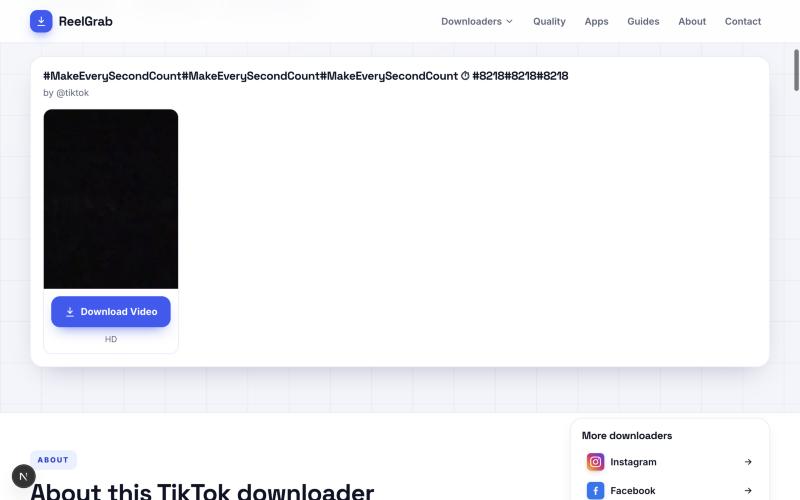
Go to the Instagram Reels page of this site and paste the link into the box. You can use the Paste button or the usual shortcut. The request starts by itself, so there is no need to press anything else. Within a few seconds you will see a preview with the account name, a short title taken from the caption and a Download button.
If you copied the caption along with the link, that is fine. The box picks the first web address out of whatever you paste. If you paste an account link instead of a reel link, the page will tell you, because an account has no single video behind it.
Step 3: save the file and check what you got
Press Download and the MP4 goes to your usual downloads folder. To see the real quality, open the file details. On Windows, right-click the file, choose Properties and open the Details tab, where Frame width and Frame height are listed. On a Mac, select the file and press Command and I. A reel that shows 1080 by 1920 is Full HD. If it shows 720 by 1280, the source was HD, which still looks good on a phone.
File size is another clue. A one-minute Full HD reel is often between 8 and 20 MB. A much smaller file usually means the creator uploaded at a lower quality or that the reel was reposted and compressed earlier.
Why some reels look softer than others
Three things decide how sharp a reel is. The first is the camera and settings of the creator. A reel filmed at low light with an older phone will never be crisp. The second is the upload path. A reel that was screen-recorded, edited in an app that exports at low quality, or reposted from another platform has already been compressed once, and every extra round makes it worse. The third is how the platform stores it. Instagram keeps a few versions of every reel and may serve a smaller one to slow connections.
If a reel looks poor, open the original post from the creator's own account and use that link. Do not use a link to a repost, a collab copy or a remix, because those can be lower quality copies.
Reels with music, and what you may do with them
A saved reel keeps its sound, so a trending song stays in the file. That is fine for watching on your own device. Music belongs to artists and labels, and Instagram licenses it for use inside its own app. Posting your saved copy somewhere else can be muted, removed or claimed. If you want to reuse a reel in your own work, ask the creator for permission and give credit.
If you only need the sound for personal listening, use the Audio page of this site, which saves the soundtrack where the platform offers it as a separate file.
Saving on iPhone, Android and computers
On iPhone, use Safari. After you tap Download, open the Downloads icon in the address bar, tap the file and use Share, then Save Video, so the reel appears in the Photos app. On Android, Chrome saves to the Downloads folder and shows a notification. Gallery and Google Photos usually list it within a minute.
On a computer, the file goes straight to Downloads. Large files save faster on Wi-Fi or a wired connection, and you can copy the reel to a phone with a cable, a cloud drive or a nearby sharing feature.
If something goes wrong
If the page says the reel could not be fetched, check three things. The account must be public, the link must point to the reel and not the profile, and the reel must still exist. Instagram also limits requests for short periods, so wait a minute and try again. If the preview shows but the button does nothing, reload the page, make sure your browser may download files, and paste the link again.
Private browsing windows sometimes block downloads, so try a normal window. If nothing helps, send us the link through the contact page and say which device and browser you use, so we can find out what changed.
What it looks like on the page
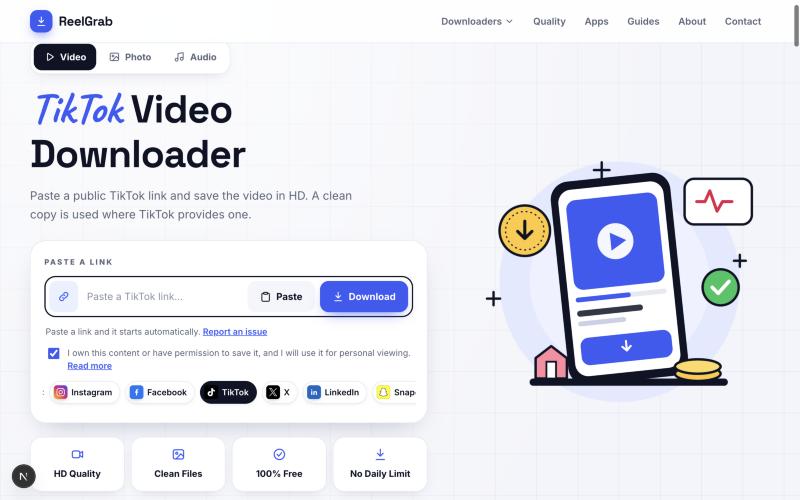
This is how the page looks when you use it. The link goes into the box, you confirm that the content is yours to save, and a preview card appears with a single Download button for each file.
What the result looks like
After a few seconds the result card appears with the preview and the download button.