Home / Guides / How to download an Instagram video, step by step
How to download an Instagram video, step by step
Instagram has more than one kind of video: ordinary feed videos, longer IGTV style uploads, clips that sit inside a carousel, and reels. They all have a web address, and that address is all a downloader needs. This guide explains how to copy the right link for each kind, how to save every clip from a multi-video post, how to move the file into your gallery, and how to deal with the most common errors. It is written for phones first, because that is where most people watch and save videos, with notes for Windows and Mac as well.
Last updated: October 29, 2026
The kinds of Instagram video
A feed video is the classic post with a play button, square or portrait in shape. A carousel can hold several photos and videos that you swipe through. IGTV style videos are longer uploads that now live among normal posts. Reels are short vertical videos. For all of these the Video page of this site works with the link to the post, and the Reels page is the same process with a few extra tips for vertical clips and sound.
The file you save is a normal MP4. It plays on phones, computers, televisions and in editing software, which makes it easy to keep, move and watch offline.
Step 1: copy the link to the post
Open the post and tap the paper-plane Share icon, then choose Copy link. On a computer, copy the address from the browser bar while the post is open, or use the three dots on the post and pick Copy link. Links look like instagram.com/p/ followed by a code for feed posts, or instagram.com/reel/ for reels.
Check that the account is public. A quick test is to open the link in a private window. If the video plays without a login, you can save it.
Step 2: paste it into the Instagram Video Downloader
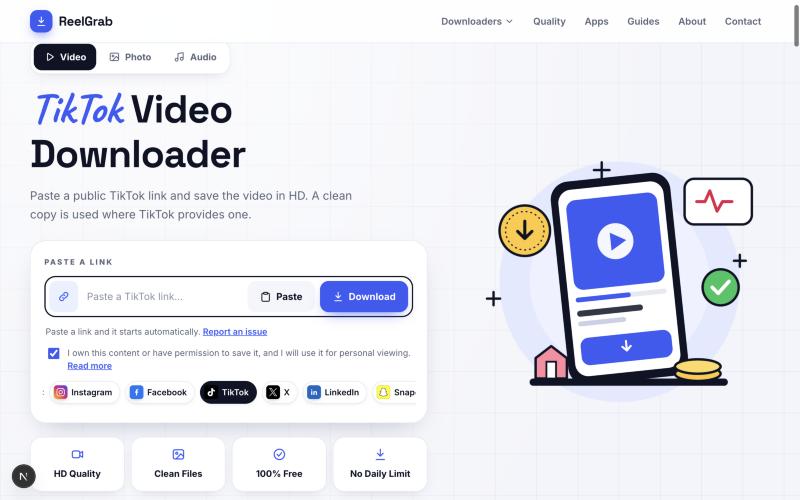
Paste the link into the box on the Video page. The tool starts by itself and shows a preview in a few seconds, along with the title from the caption and the name of the account. If the post is a carousel with several clips, you will see one preview and one button for each video, so you can save the ones you want.
Photos inside the same carousel appear as pictures with their own buttons, which is handy when a post mixes both kinds of media.
Step 3: save the MP4
Press Download on the clip you want. The video goes to your downloads folder with its original sound and with no watermark added by us. We do not convert or compress it, so the quality is what Instagram holds for that post. Most feed videos are 720p or 1080p.
Give the file a clear name if you plan to keep it, because downloaded files usually get a code in place of a name. A quick rename now saves a lot of searching later.
Moving the video into your gallery
Browsers save to a downloads folder, not to the photo library. On iPhone, open the Downloads icon in Safari, tap the file and use Share, then Save Video. It then appears in Photos. On Android, open the notification after the download or look in Files under Downloads. Gallery and Google Photos normally show a Downloads album after a short wait.
On a computer you can leave the file where it is, or copy it to a phone with a cable, a cloud drive or a nearby sharing feature. If your phone is low on space, copy the videos to cloud storage and delete the local copies.
Quality, file size and data use
Video quality is set when the creator uploads. A clip shot in 1080p stays 1080p, and one uploaded at 720p stays 720p. No tool can honestly turn a low resolution clip into a high one. File sizes depend on length and quality. As a rough guide, a minute of 720p is around 4 to 8 MB and a minute of 1080p around 8 to 15 MB.
If you are on mobile data, save big videos on Wi-Fi. A long 1080p video can use as much data as a short film trailer, and saving many of them adds up quickly.
Respecting the creator
Videos belong to the people who made them. Saving a copy to watch later is one thing. Uploading it again as your own, removing credits or using it in an advert is another, and can lead to takedowns or legal claims. If you want to use a video in your own work, ask for written permission and credit the creator.
When it does not work
The most common reasons are a private account, a deleted post, a link that points to a profile instead of a post, or a short block by the platform after many requests. Open the link in a private window to check that it is public, copy the link to the post itself, and wait a minute before trying again.
If the preview appears but the button does nothing, reload the page and check that your browser is allowed to download files. Private browsing sometimes blocks downloads. If the problem stays, contact us with the link and the device you use.
Quick answers
Can I save a video from a private account? No. A private account shows its posts only to approved followers, so a public tool cannot see them, and we would not want it to. If you know the person, ask them to send you the file.
Does the video keep its sound? Yes. The MP4 you save has the same audio as the post, including music, voice and background noise.
Is there a limit on how many videos I can save? We do not set a daily limit for normal use. To protect the service from abuse, very fast repeated requests from the same device can be slowed for a minute.
Why is the preview picture sometimes a different frame? The preview is the cover image the creator or the platform chose. The video itself is complete.
Tips that save time
Keep a short routine. Copy the link, open the Video page from your home screen if you installed the site as an app, paste and save. Installing it takes a few seconds and puts a button on your home screen, which makes every later save quicker.
If you save videos for study or for a project, write down the account name and the date next to the file name. When you need to credit the creator or find the original post again, you will have what you need.
What it looks like on the page
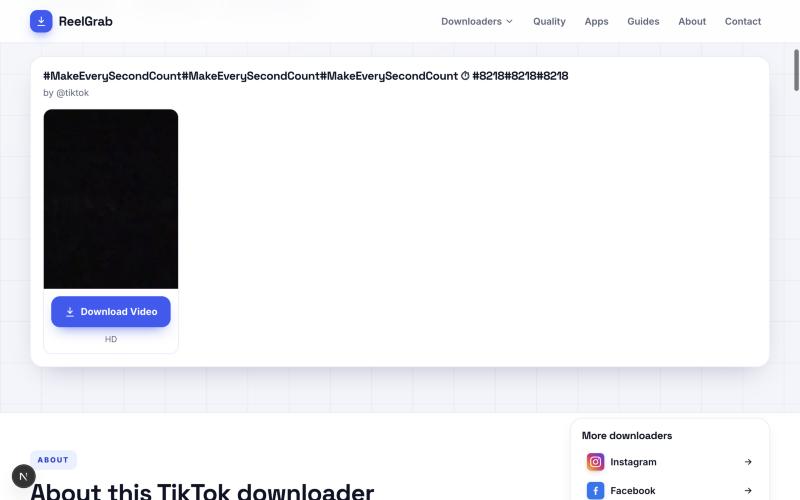
The steps above, as they appear on screen. Paste the link and confirm the ownership box. A card shows the preview and quality, and each clip in a carousel gets its own button.
What the result looks like
After a few seconds the result card appears with the preview and the download button.